
Sonoff RF Bridge (433Mhz)

This device flashed with Tasmota will allow farely seemless integration into Home Assistant using a MQTT Broker. This device will allow you to integrate various 433Mhz Sensors, Buttons, Outlets, etc. Using Tasmota, you can control and listen for messages from an unlimited number of devices within reach of this device. All these events can be configured in Home Assistant to turn on lights, ring door bells, or whatever your automation needs are.
Configuration
Pre-Requisites:
- Tasmota has already been flashed onto the Sonoff RF Bridge
- You have a working instance of Home Assistant
- Your Home Assistant Instance is already linked to a MQTT Broker
- You have already connected to Tasmota's Access Point and configured the unit to connect to your local WiFi
- Under Configure Module, you selected "Sonoff Bridge (25)", saved and rebooted the device.
- You already know how to access your RF Bridge's Web Interface and Home Assistant
- Configured the RF Bridge to access the MQTT Broker and used "RFBridge" as the "TOPIC."
What we can do with Home Assistant
Unfortunately, with the bridge, Home Assistant isn't going to do the work for you and start detecting all your buttons, sensors on its own. So you will have to teach home assistant how to integrate these devices. Because the bridge is completely useless without at least one 433Mhz device, for this demonstration, I will be using a Push Button. I use these devices on my key chain and in various parts of the house because they are simple and I can teach them to do anything I want with Home Assistant.
The first thing you need to understand is that every 433Mhz device uses a "Code" and these codes will be unique to each device. Wireless Buttons or KeyFob's will generate a different code for each button on the controller. Door Sensors will have a code for when the door opens, and a different code for when the door is closed. Do you want a light to turn on when a key is pressed on a KeyFob or when a motion sensor detects motion or even a door sensor detects that a door has been opened?? Do you need these events to also send out another RF Code from the Bridge to turn on a 433Mhz Outlet? All this functionality can be simply handled through "Automations." Automations allow home assistant to respond to events and perform actions. The beauty of it all is the devices that you decide to control don't have to be 433Mhz Compatible. Home Assistant will do all the heavy lifting when it comes to talking to the various integrations that communicate with other Smart Devices in your home.
In this article, we are going to stick with Automations. They are simple to create and they have a lot of functionality. In the future, I will write up an article on how to create Binary Sensors in YAML, but that is beyond the scope of this article.
Obtaining the Codes
I recommend you open a Notepad or something on your computer to copy the codes to and what they are for. We will need these codes to configure the various automations that they will trigger. For this you will need to open a browser and access your Sonoff Bridge. Once you arrive at the main interface, click on Console:
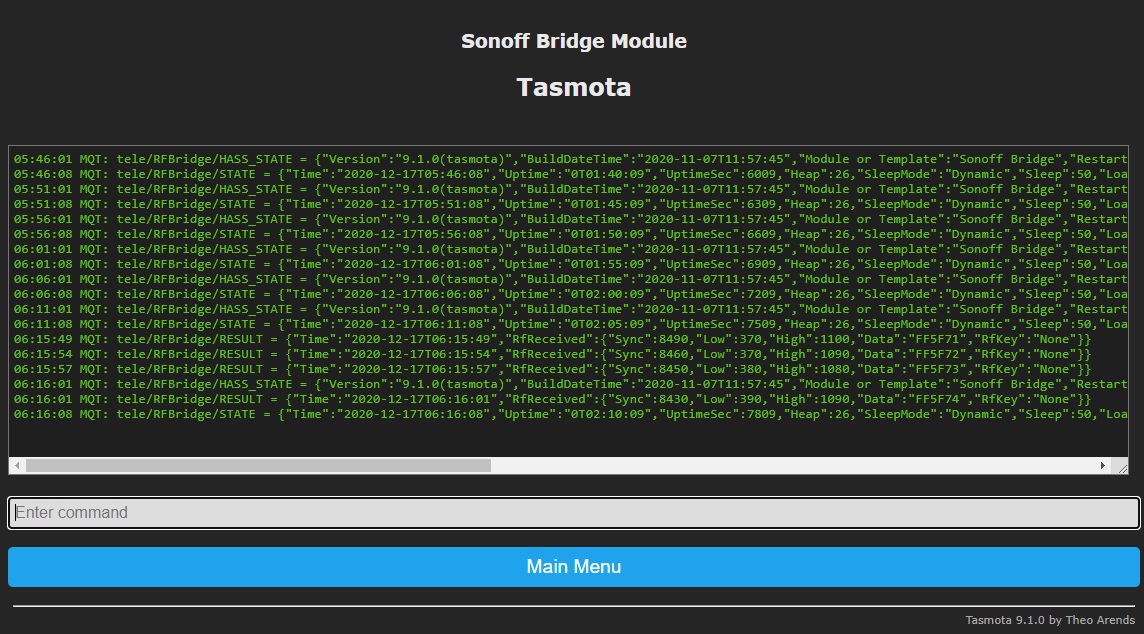
Once this screen comes up, you can begin pressing buttons on your controller. The code you are looking for is under Data on the RfReceived Packet as seen above...
06:15:49 MQT: tele/RFBridge/RESULT = {"Time":"2020-12-17T06:15:49","RfReceived":{"Sync":8490,"Low":370,"High":1100,"Data":"FF5F71","RfKey":"None"}}
06:15:54 MQT: tele/RFBridge/RESULT = {"Time":"2020-12-17T06:15:54","RfReceived":{"Sync":8460,"Low":370,"High":1090,"Data":"FF5F72","RfKey":"None"}}
06:15:57 MQT: tele/RFBridge/RESULT = {"Time":"2020-12-17T06:15:57","RfReceived":{"Sync":8450,"Low":380,"High":1080,"Data":"FF5F73","RfKey":"None"}}
06:16:01 MQT: tele/RFBridge/RESULT = {"Time":"2020-12-17T06:16:01","RfReceived":{"Sync":8430,"Low":390,"High":1090,"Data":"FF5F74","RfKey":"None"}}
On my controller, I pressed A,B,C,D on my KeyFob. A Button is FF5F71, B Button is FF5F72, C Button is FF5F73, and D Button is FF5F74. Now that we have the codes we need, let go teach home assistant to do something when one of these keys is pressed. So lets head over to Home Assistant. Click on Configuration and then Automations:
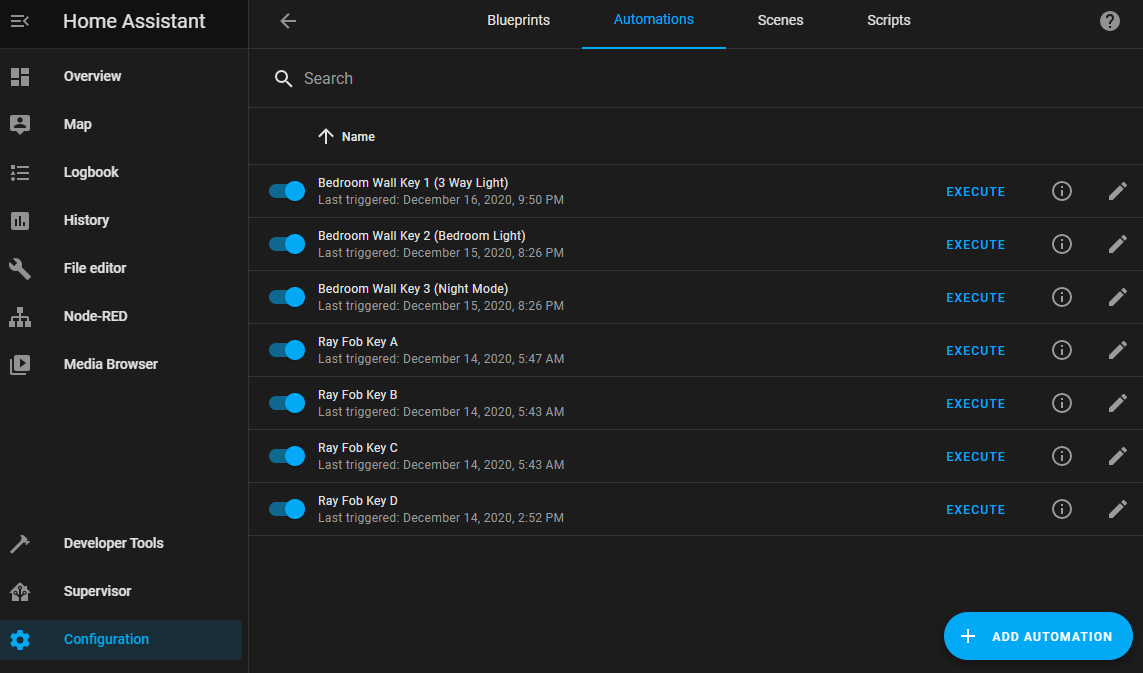
As you can see, I already have a few setup. Don't worry, yours will likely be empty. We will fix that here in a few minutes. I have an Automation defined for each key on each controller. This allows me to make a key do a series of things, or just 1 thing. I can also disable the automation which will in a sense disable the key on the KeyFob or Button on the wall. No ugly YAML, and very easy to setup. There is 2 ways to make this work.. One is kind of ugly, which is workable and I will show you in a moment. The other method is easy, however you will have to add 1 Rule on the RF Bridge. But this one rule will save you days of headache when you decide to create further automations or binary sensors in YAML (A article for another day). So lets "+ Add Automation" and start with the ugly way:
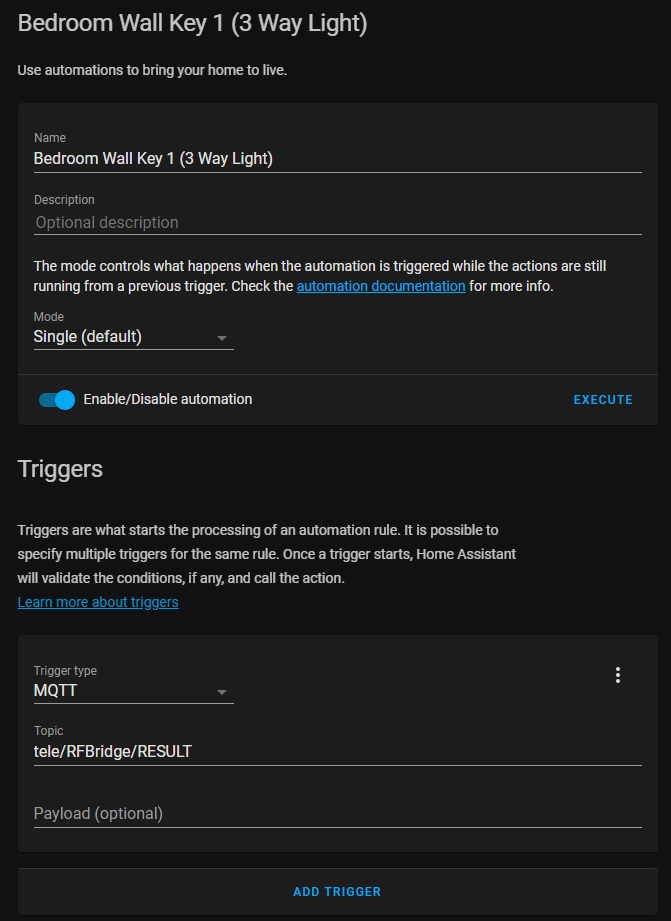
So you simply name the Automation, set the Trigger Type to MQTT and assign the topic. In this case the topic is "tele/RFBridge/RESULT" because we set the topic on the RFBridge during configuration of MQTT to RFBridge. If you picked a different name then you will have the change only the "RFBridge" part of that Topic. Here comes the ugly. We don't want to specify a Payload here because the result is being returned as JSON... So this rule passes every time a Message gets published to "tele/RFBridge/RESULT". In order to get the information we need, we need to create a template. This time a template condition to breakdown the JSON and get the "Data" we need. So once again through the magic of Screen Capture:
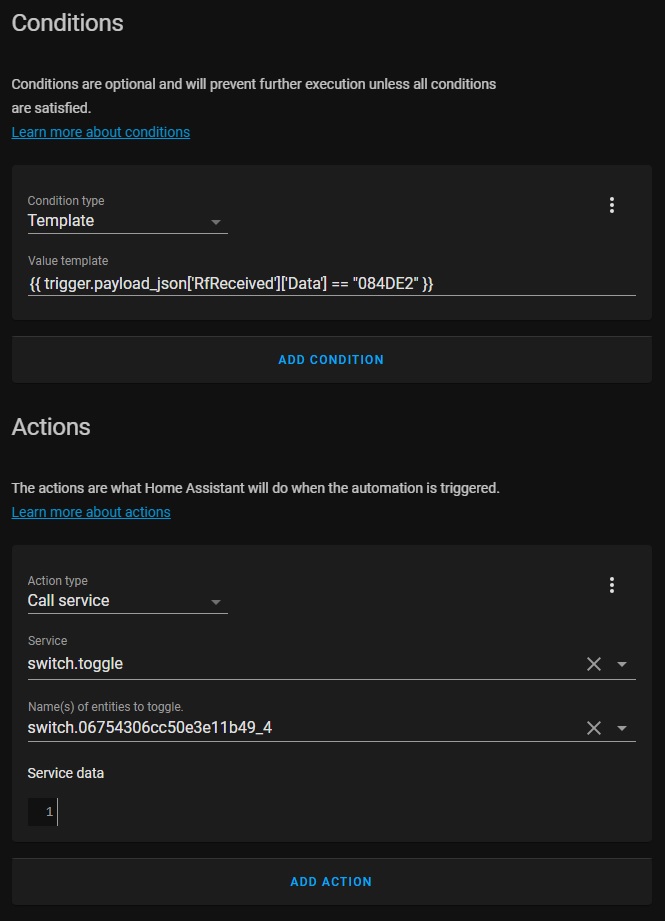
As you can see in the Template, we pull the value from the JSON "List" to extract the value and then compare it to the value we are looking for... There are 2 method of doing this:
{{ trigger.payload_json['RfReceived']['Data'] == "084DE2" }}

  OR

{{ trigger.payload_json.RfReceived.Data == "084DE2" }}
If you fail to add this Template, than any button will trigger the automation. This can have very undesireable results expecially if more than one automation doesn't have a template. Once this is defined, you can tell the Home Assistant the Action or Actions you want to perform... In most instances this will be switch.toggle or light.toggle depending on what the device is. The name of the entity to toggle along with the service are drop down menu's so you can easily select which integrated component you want to control. By selecting toggle, that means if the light or switch is already on, then turn it off. If the switch or light is already off, then turn it on. This makes it handy to assign one key for both functions. You can also assign more actions to the Automation... Maybe you are leaving and just want to press a button to turn off various lights in the house but also want turn the porch light on so when you return, you can see to get in. You can also use this Automation to call a scene or another automation that is already setup for something else. You can define a button to reload Home Assistant! :) Yeah, don't do that...
So what is the not Ugly way to do this? I'm glad you asked... With 1 Rule is Tasmota on the RF Bridge, you can extract the Data and Publish it seperately from the RESULT. This will allow us to assign the Key Data to the Payload under Trigger, eliminate the "Template" and go directly to the "Action." This will also help us later if we need to define binary sensors in YAML and eliminate all the template stuff there as well making a binary sensor very easy to define.
The Rule:
rule1 ON RfReceived#Data DO publish tele/RFBridge/KeyData %value% endon
rule1 1
The first rule simply says, if there is Key Data then Publish that "Value" seperately under "tele/RFBridge/KeyData". The second line turns the rule on. Don't worry, this change is perminate. This will survive between reboots, etc. Now that we have made this 1 little change. We can start defining Automations like this: